
01
Choose a ticket
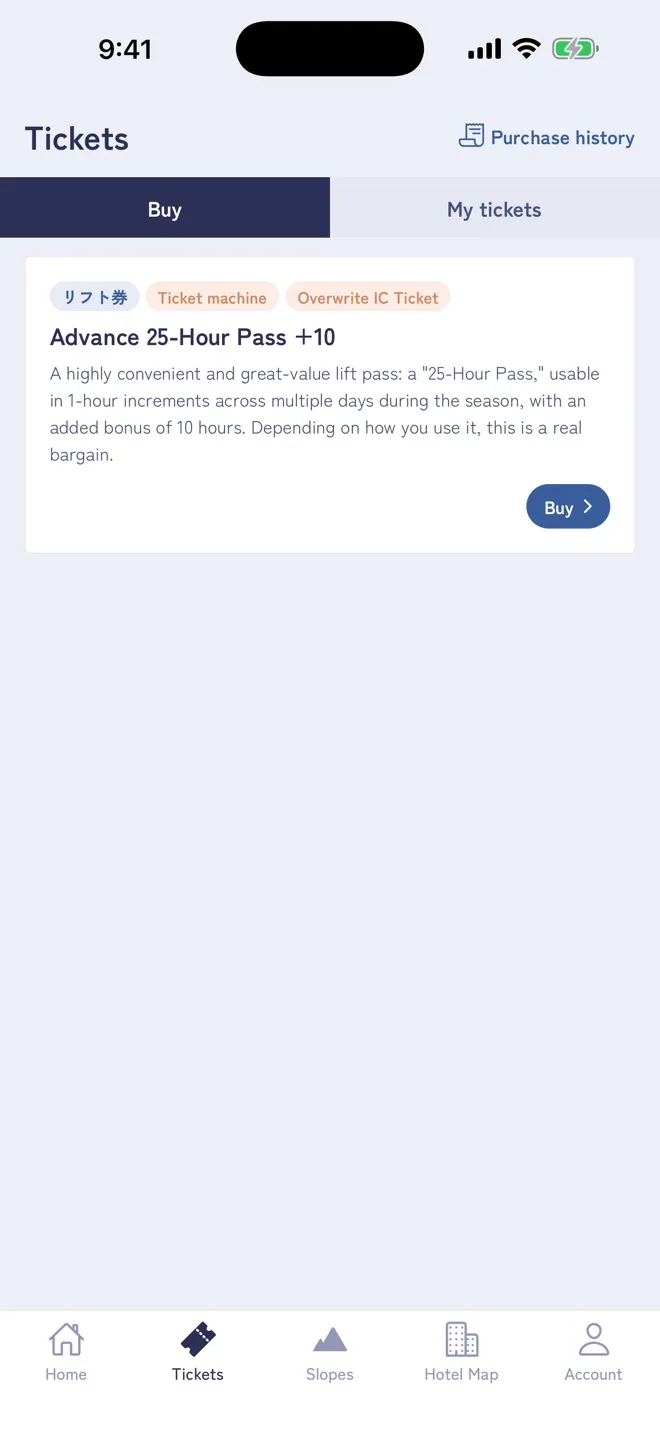
Open the “Tickets” tab at the bottom of the screen. The “Buy” tab lists the lift tickets on sale.
Tap “Buy” on the ticket you want.
PURCHASE
Buying goes through the screens below. Payment is made on a page run by the payment service Stripe.
Open the “Tickets” tab at the bottom of the screen. The “Buy” tab lists the lift tickets on sale.
Tap “Buy” on the ticket you want.
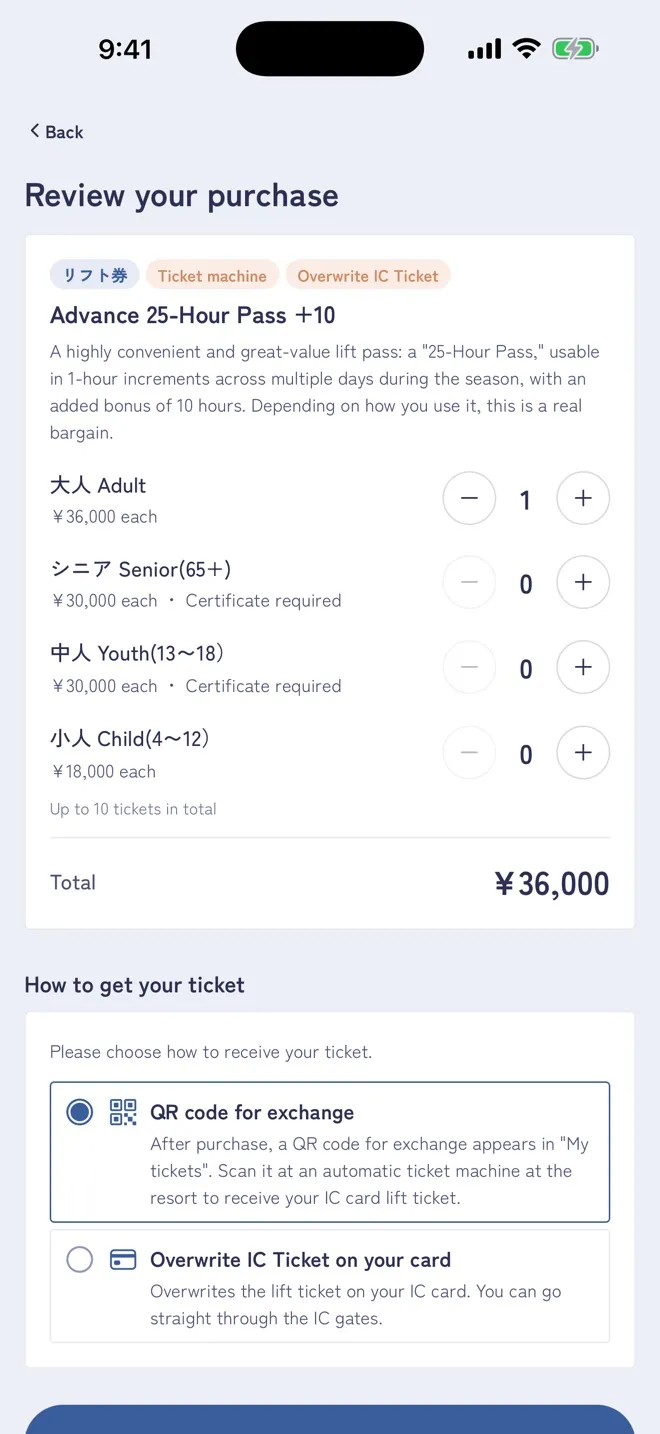
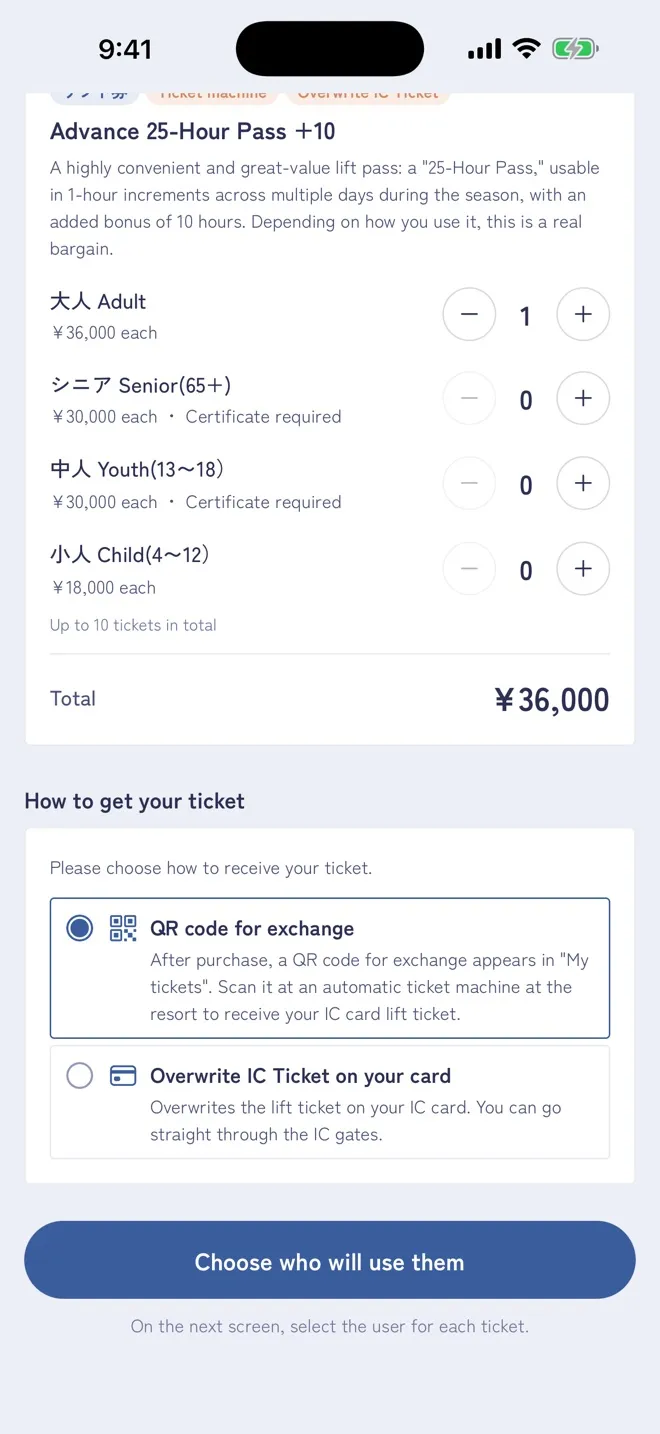
On “Review your purchase”, choose the number of tickets for each category (adult, senior and so on).
Under “How to get your ticket”, choose how you will receive it.
When you are done, tap “Choose who will use them” at the bottom.
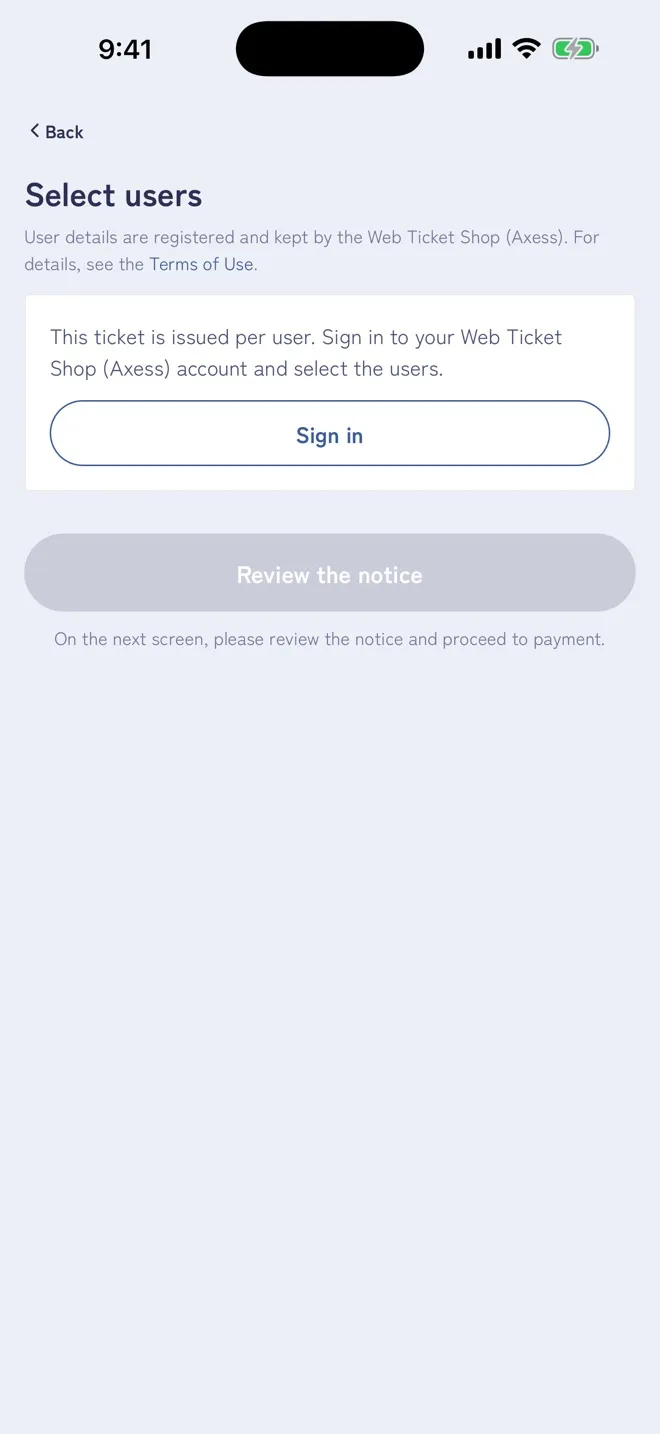
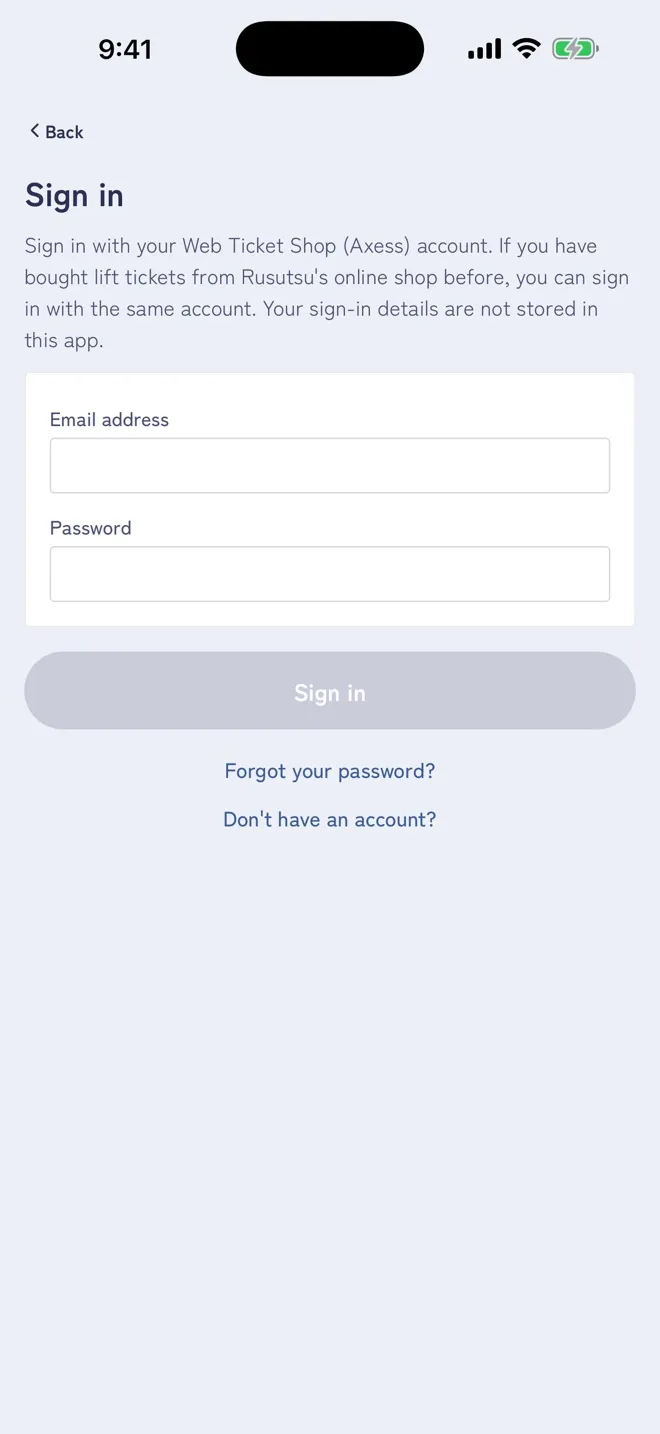
This ticket is issued per person, so you sign in with your Web Ticket Shop (Axess) account.
If you bought lift tickets from the Rusutsu online shop in a previous season, you can sign in with the same account. If you do not have one, create one from “Don’t have an account?”. If you forgot your password, reset it from “Forgot your password?” (see “Reset your Web Ticket Shop password”).
After signing in, choose a user for each ticket. For senior and youth tickets, attach a photo of an ID such as a student card that shows the name and date of birth (not needed if already registered).
When you are done, tap “Review the notice”.
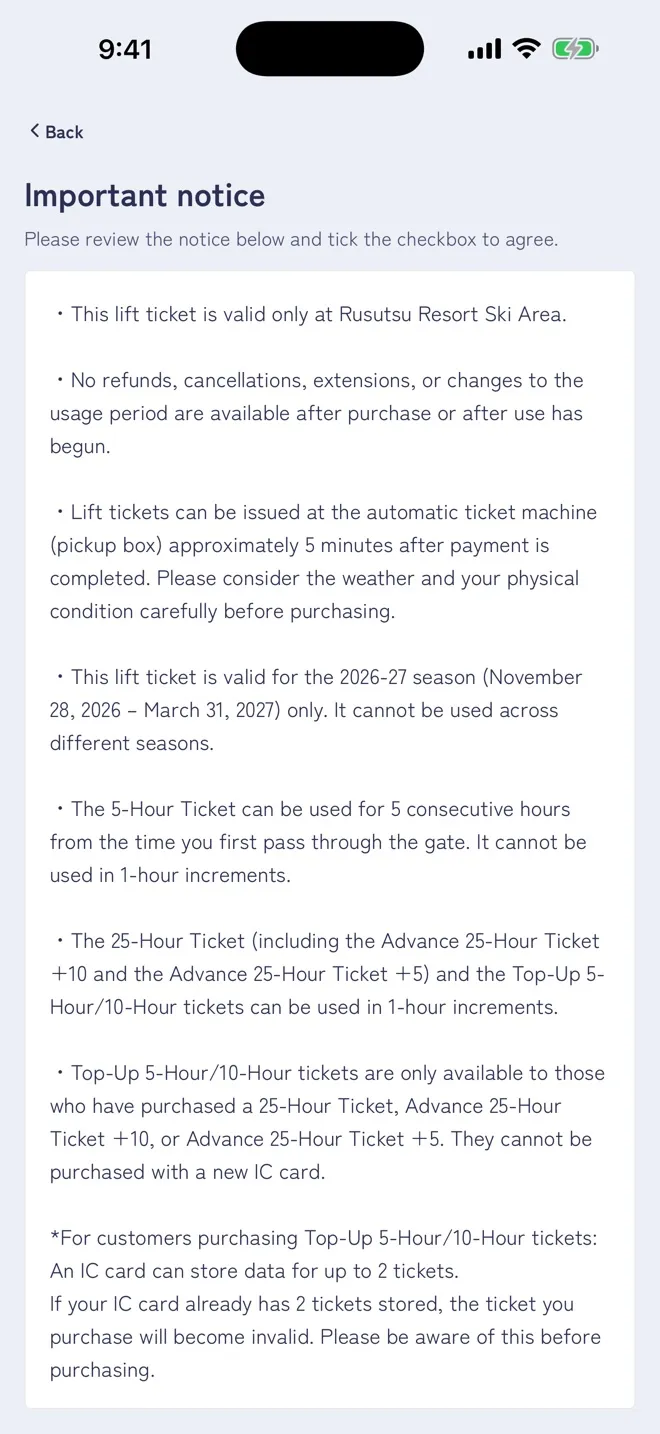
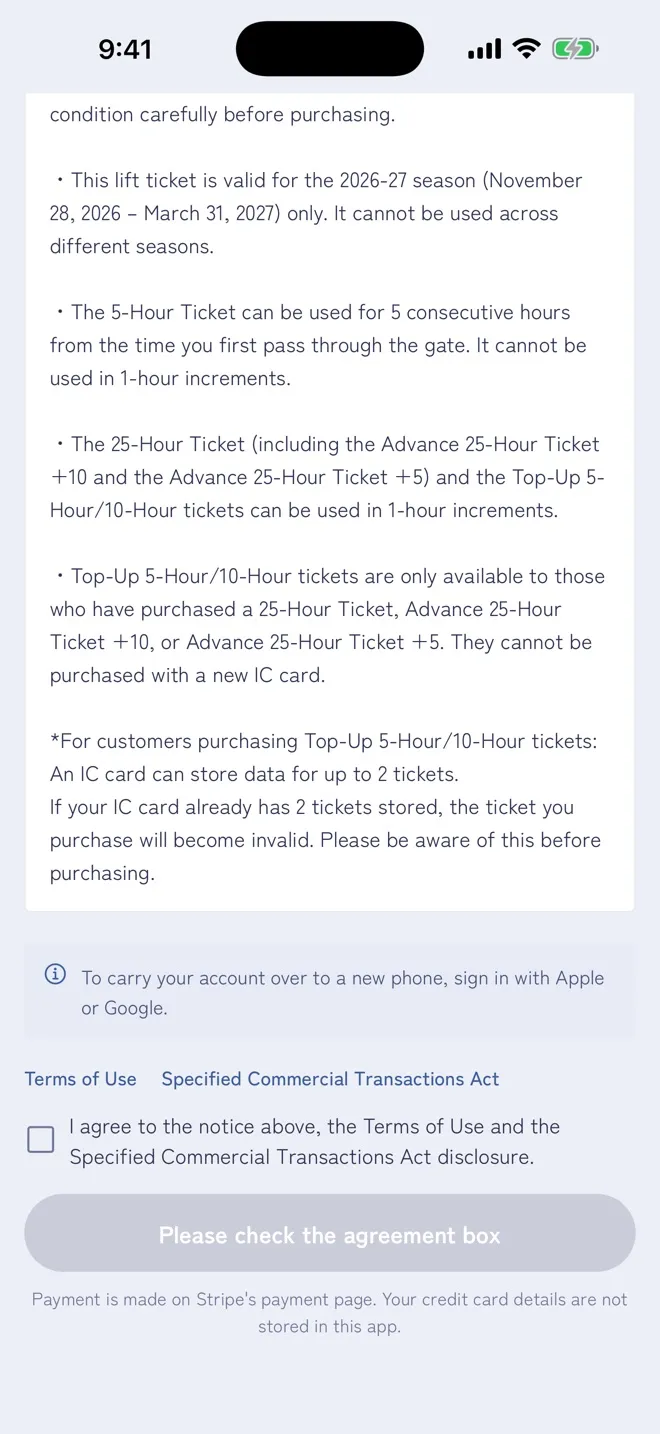
Read the notice to the end, tick the “I agree” box at the bottom, then tap “Proceed to payment”.
Until the box is ticked, the button stays grey and says “Please check the agreement box”.
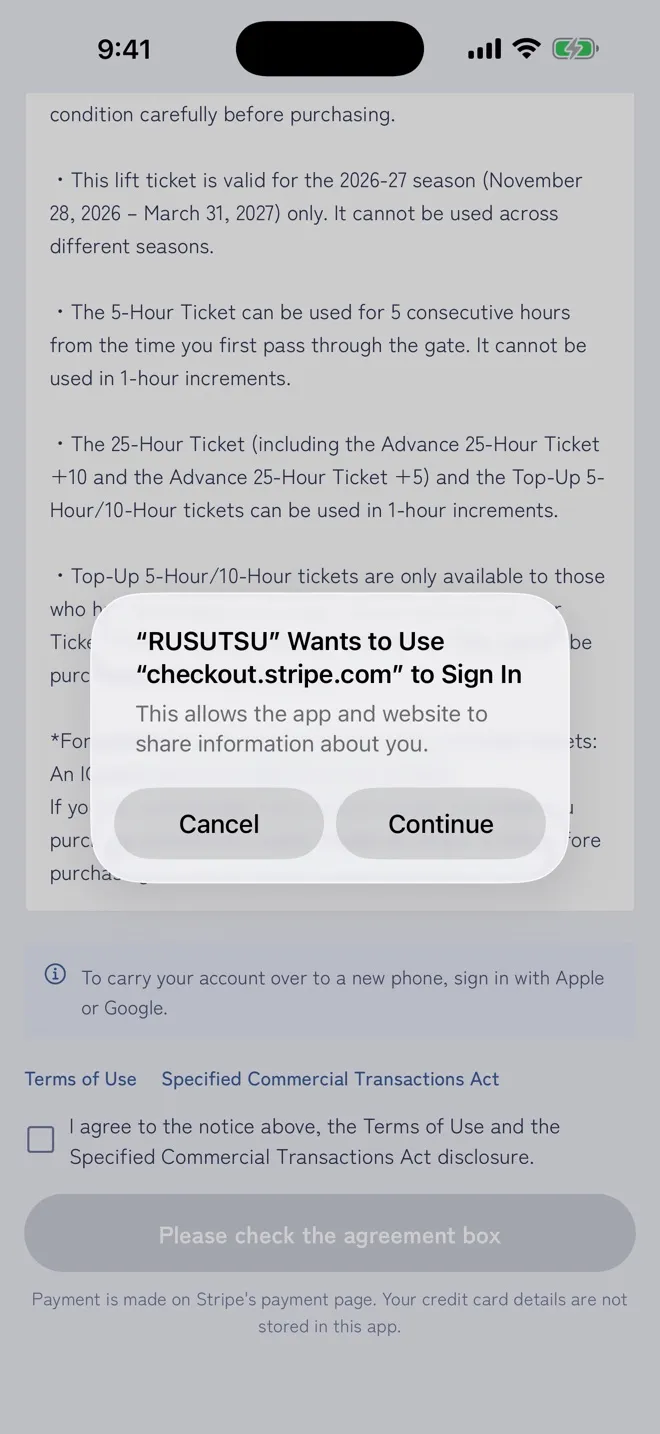
On iPhone, a prompt appears: “RUSUTSU” Wants to Use “checkout.stripe.com” to Sign In. Tap “Continue”.
This is an iPhone prompt for opening the payment page. Nothing is signed in or registered. The prompt does not appear on Android.
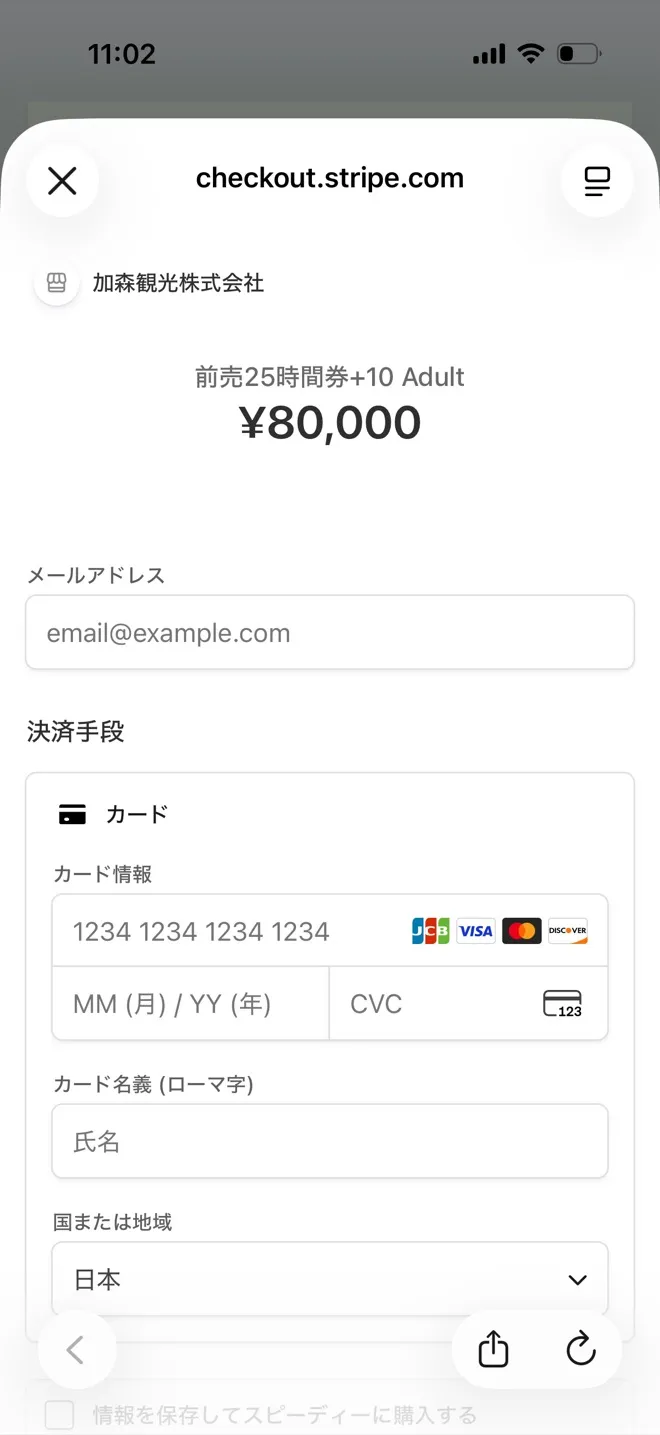
Payment is made on a page run by the payment service Stripe, which opens inside the app. If the top of the page says “checkout.stripe.com”, you are on the right page. It may look as if you have left the app, but this is normal.
Enter your email address, card number, expiry date, security code and cardholder name, then tap “Pay”. Your card details are not stored in the Rusutsu app.
Once the payment is complete, you are returned to the app automatically.
If you close the payment page partway, you can return to the same page from “Continue to payment” on the order screen (see “If something goes wrong”).
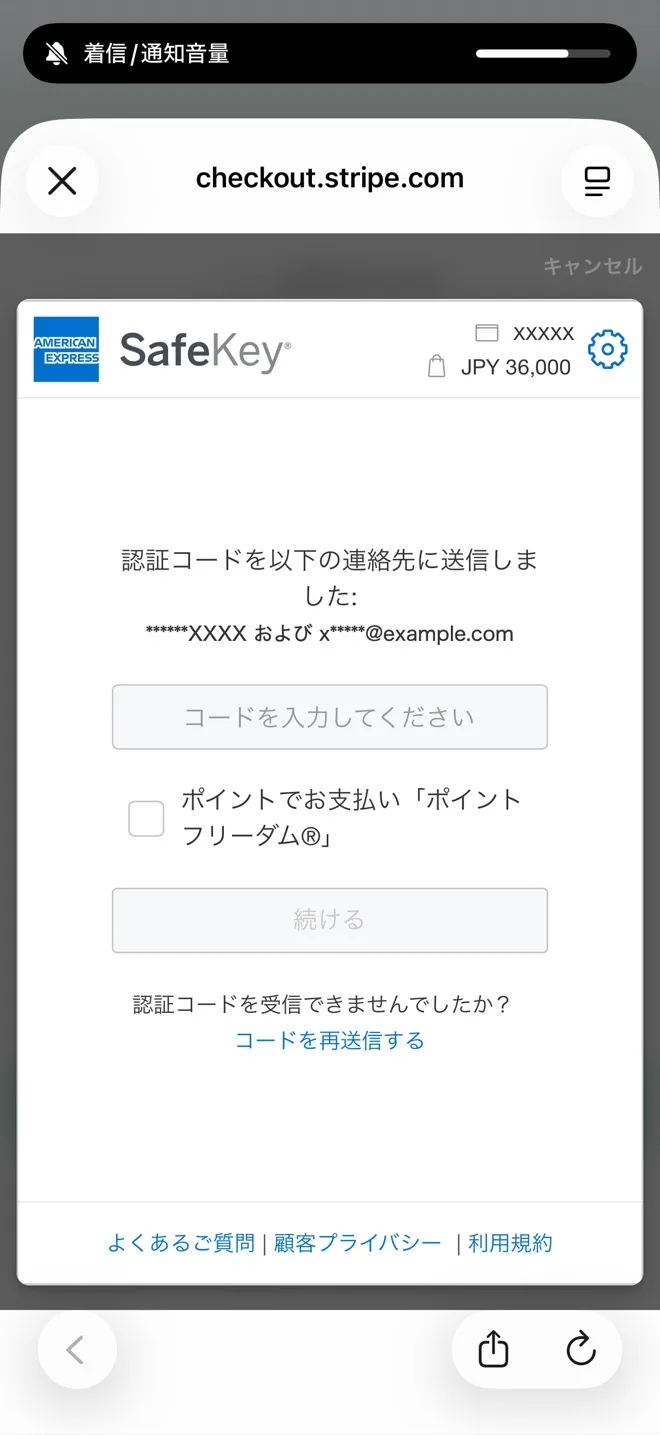
Depending on the card, your card issuer may show a verification screen (3-D Secure). Enter the code sent to you by SMS or email and tap “Continue”.
Once verified, the payment is completed and you are returned to the app automatically.
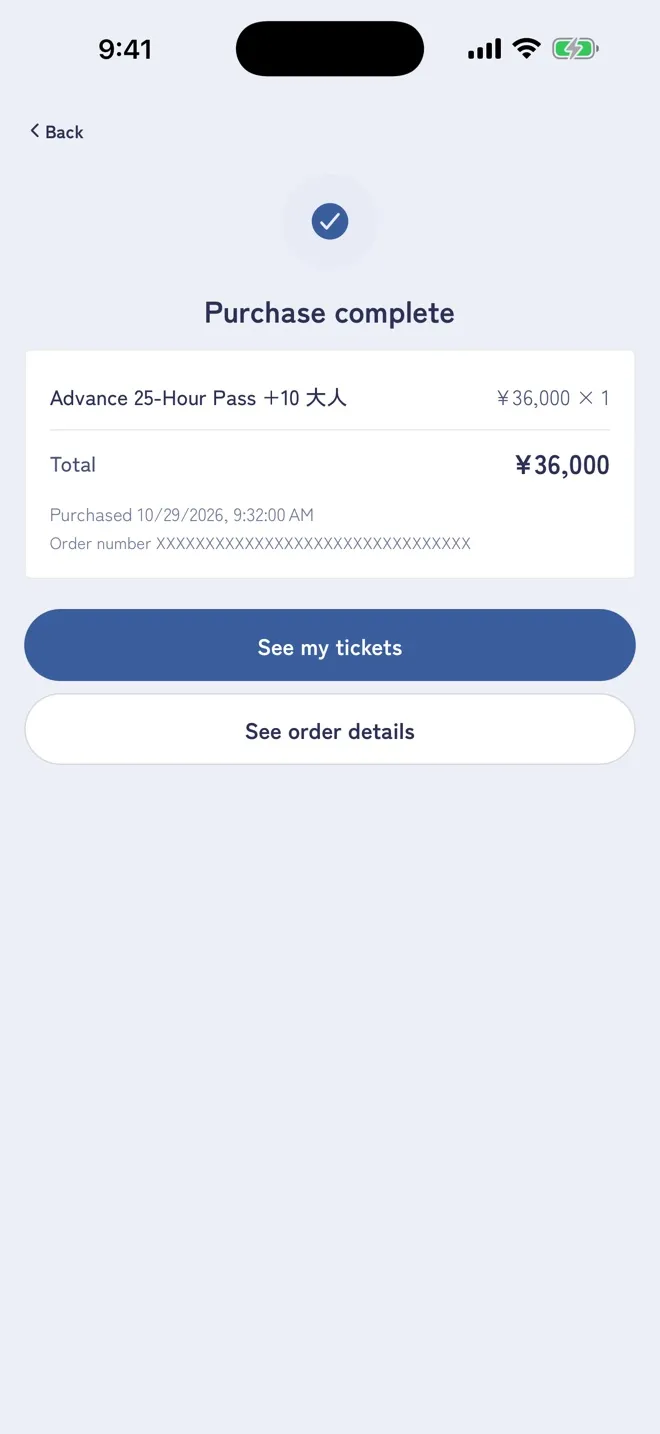
When “Purchase complete” is shown, you are done. Right after paying, the screen may say the payment is being confirmed; it updates after a short while.
Tap “See my tickets” to see the tickets you bought.