
01
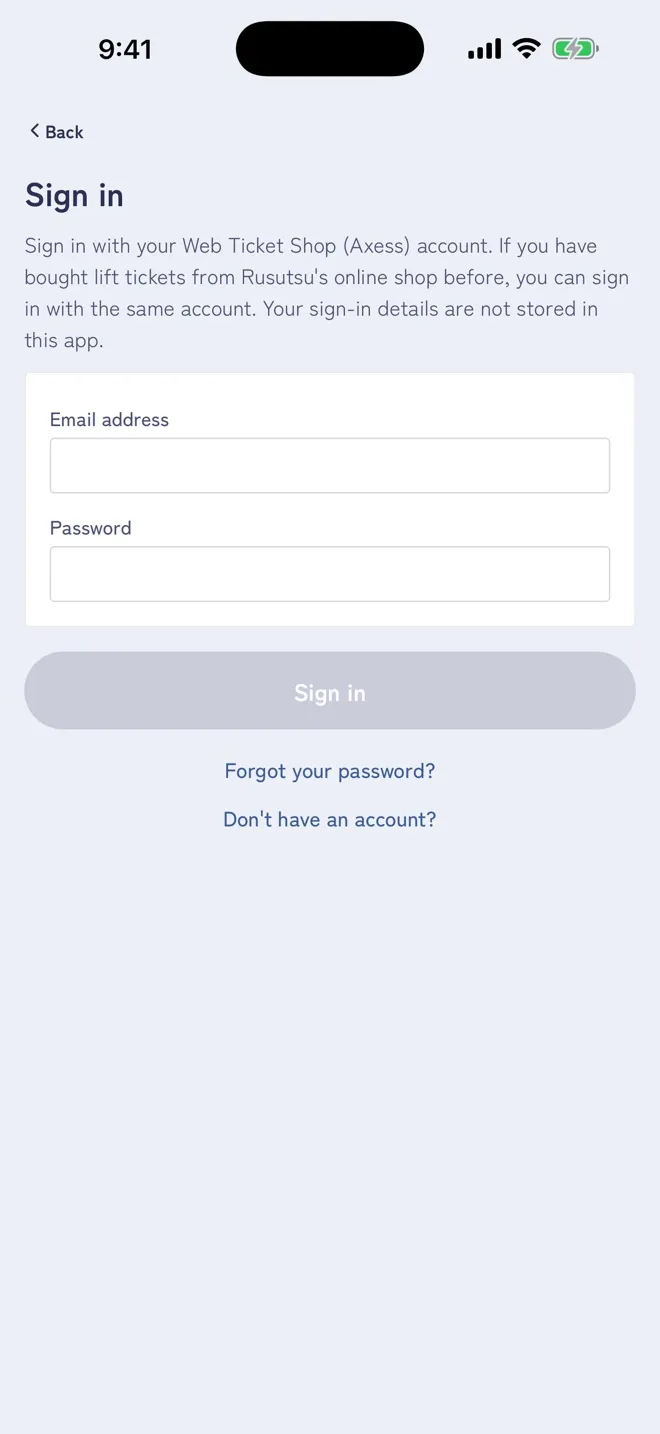
Tap “Forgot your password?”
On the Web Ticket Shop (Axess) sign-in screen, tap “Forgot your password?”.
The sign-in screen opens when you are asked to sign in at “Select the users” during a purchase.
PASSWORD
If you forgot the password of your Web Ticket Shop (Axess) account, you can reset it in the app with a code sent to you by email.
On the Web Ticket Shop (Axess) sign-in screen, tap “Forgot your password?”.
The sign-in screen opens when you are asked to sign in at “Select the users” during a purchase.
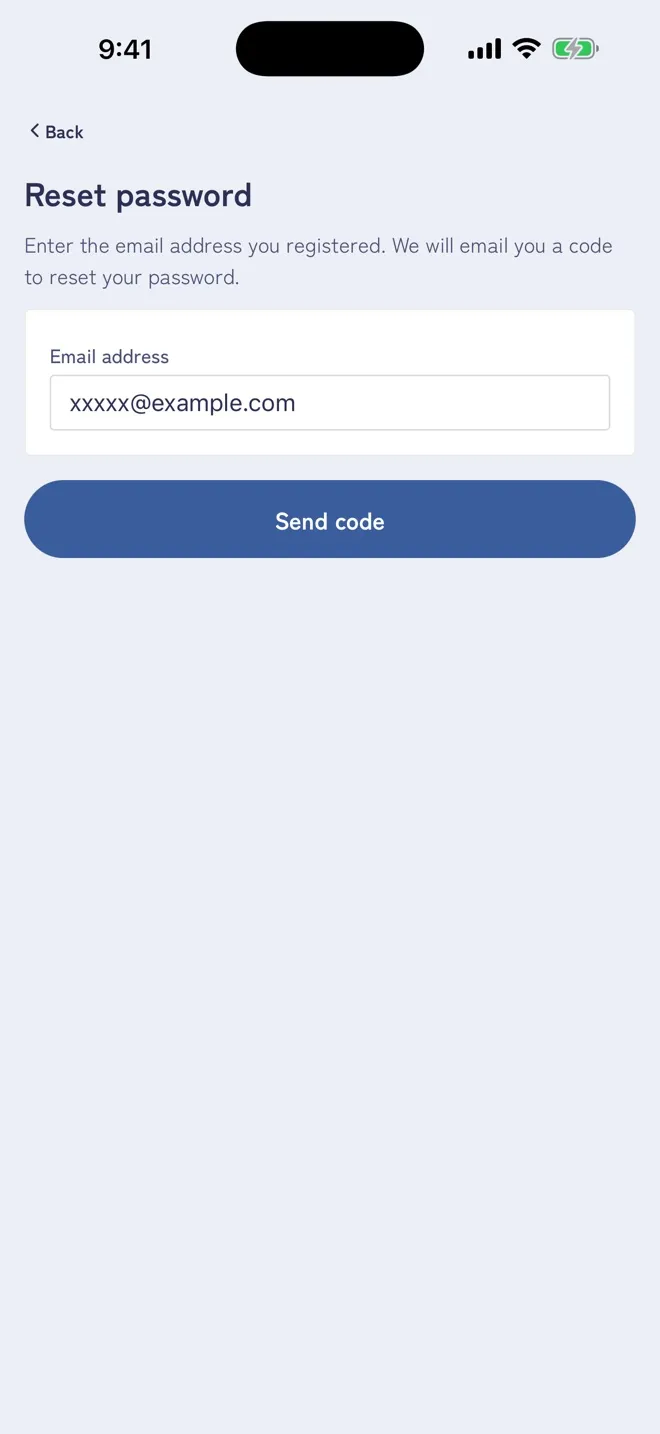
Enter the email address registered with the Web Ticket Shop (the one you sign in with) and tap “Send code”.
When the app says the code has been sent, check your email. The code is valid for 30 minutes from the request.
The app says the code was sent whether or not an account exists. If the address you entered differs from the registered one, no email is sent. You can request a code up to 3 times per hour.
We received a request from the RUSUTSU app to reset the password of your Web Ticket Shop (Axess) account.
Enter this code in the app:
XXXXXXXXXXXXXXXXXXXXXXXXXXXXXXXX
The code is valid for 30 minutes from the request.
If you did not request a reset, please ignore this e-mail. Your password stays as it is.
Rusutsu Resort
An email like the one shown arrives from “noreply@teamaxess.com”. Copy the verification code (32 letters and digits) from the message.
If the email does not arrive, check the following.
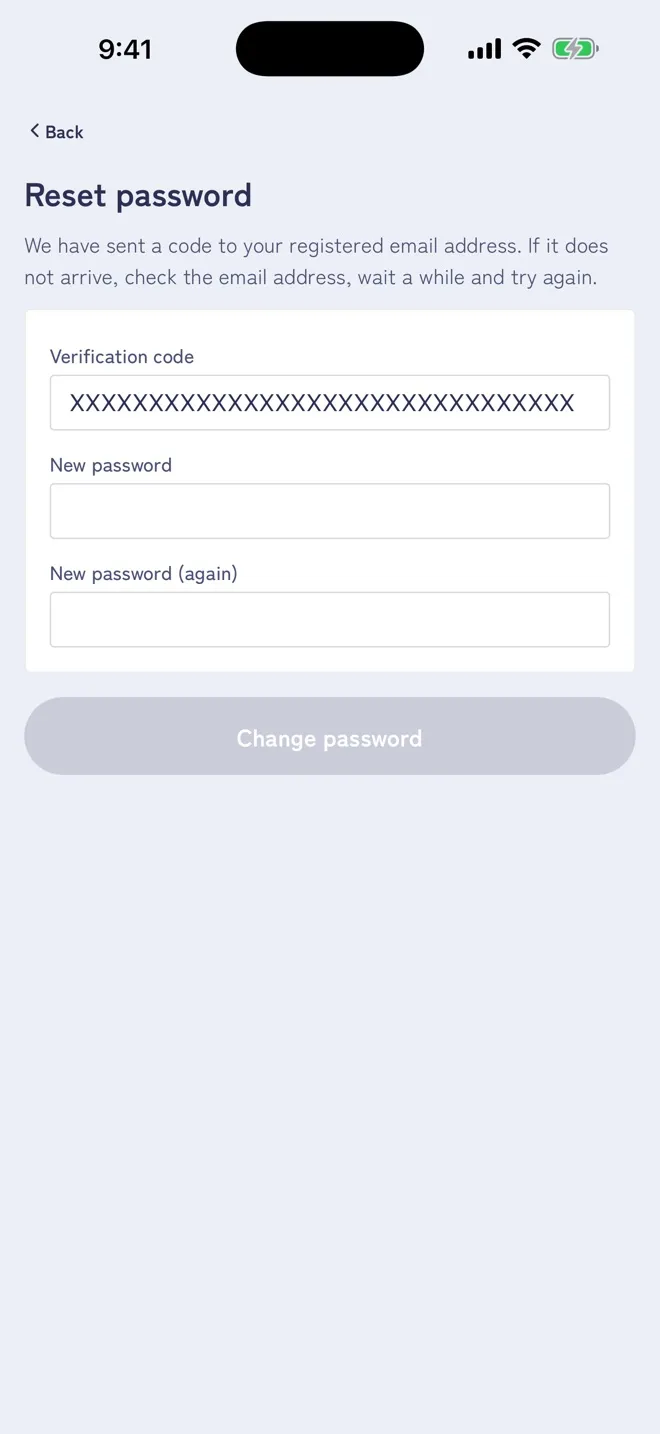
Paste the code from the email into “Verification code”, enter the same password in “New password” and “New password (again)”, then tap “Change password”.
Once changed, the app signs you in with the new password and returns to the previous screen. If it shows “Password changed” instead, tap “Sign in” and sign in with the new password.
You will also receive a notice titled “[RUSUTSU] Your password was changed” from Rusutsu Resort (no-reply@rusutsu-resort.app). If this was not you, reset your password right away and contact us through the app’s inquiry form.
If you close the app partway, open “Forgot your password?” again and continue from “Enter the code”. “Start over” sends a new code.